How booking works
Like tracking a parcel, but for your video. Book online in a couple of minutes, then follow your whole job on one page: prep, shoot day, every cut, notes and your files. Here's every step, exactly as you'll see it.
Why I built it
A big reason people lose motivation and trust when making content is that everything goes quiet once the shoot's done. The client is left wondering what's happening, and it's a pain for both sides.
So I built something that works like tracking an online order. You know how you can follow a parcel from the depot, onto the plane, through the facility, onto the truck and to your door? Your job works the same way.
Once it's booked, you get a quick checklist so you know you're ready for the shoot, with talent releases in there in case you need them. Then you watch it move through prep, shoot day and editing. When the first draft is ready it lands in your review section, where you watch it and pin your notes to the exact moment. I make the changes and upload the next cut. Once the final payment's in, your files are released.
Simple, a bit of fun, and nobody gets left in the dark.
1Step 1 of 7
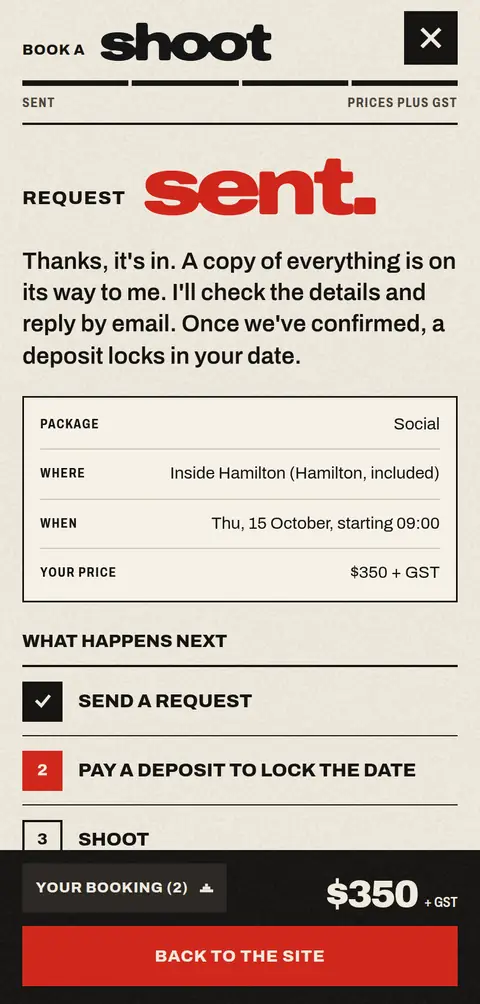
Send a request
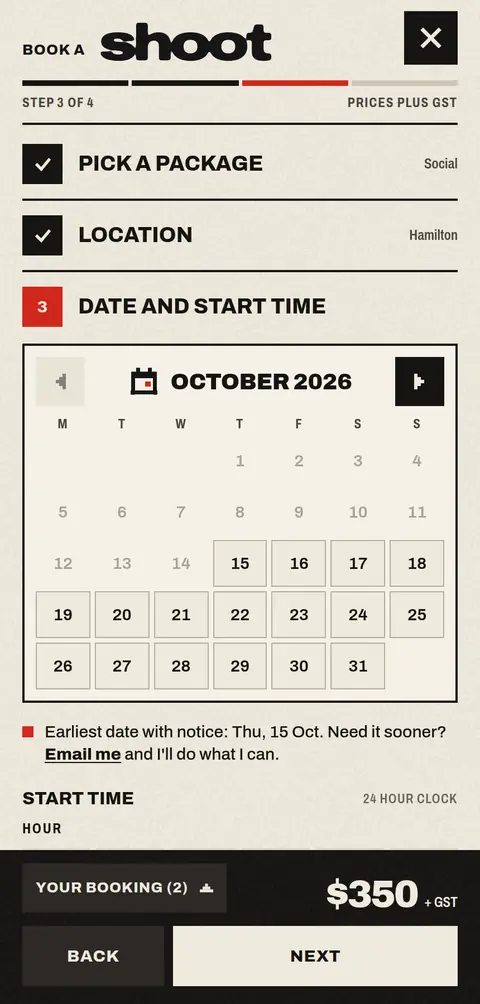
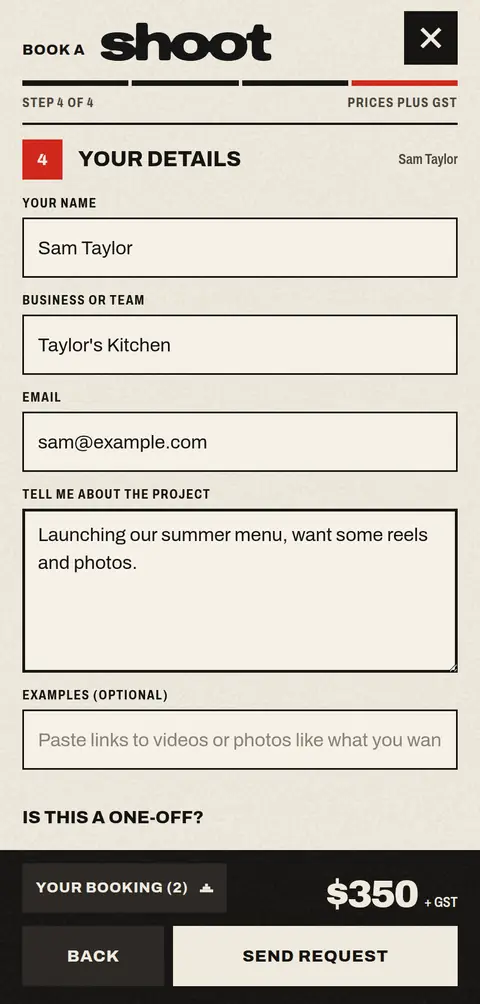
Press Book on a package, or build your own quote item by item, with how many of each. Pick where the shoot is, choose a date and start time, and tell me about the job. The price updates as you go, so there are no surprises.
Nothing is charged or locked in yet. It's a request.
2Step 2 of 7
Get your quote
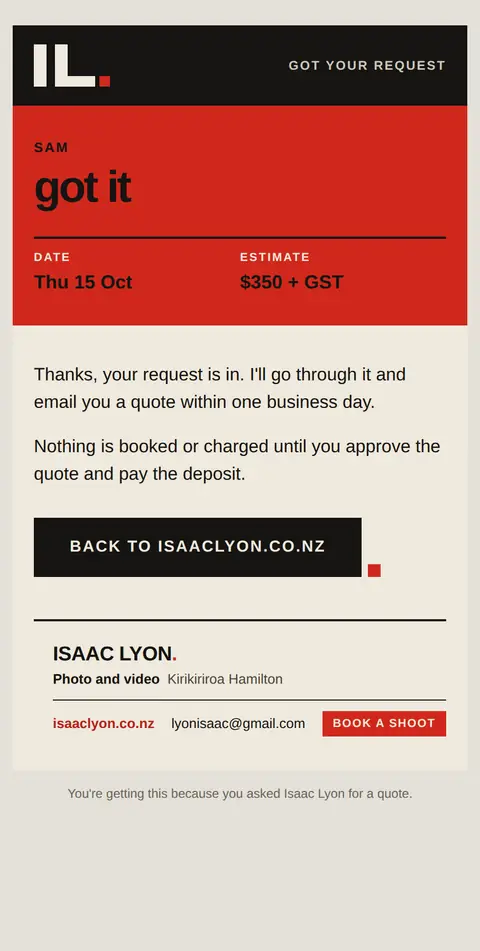
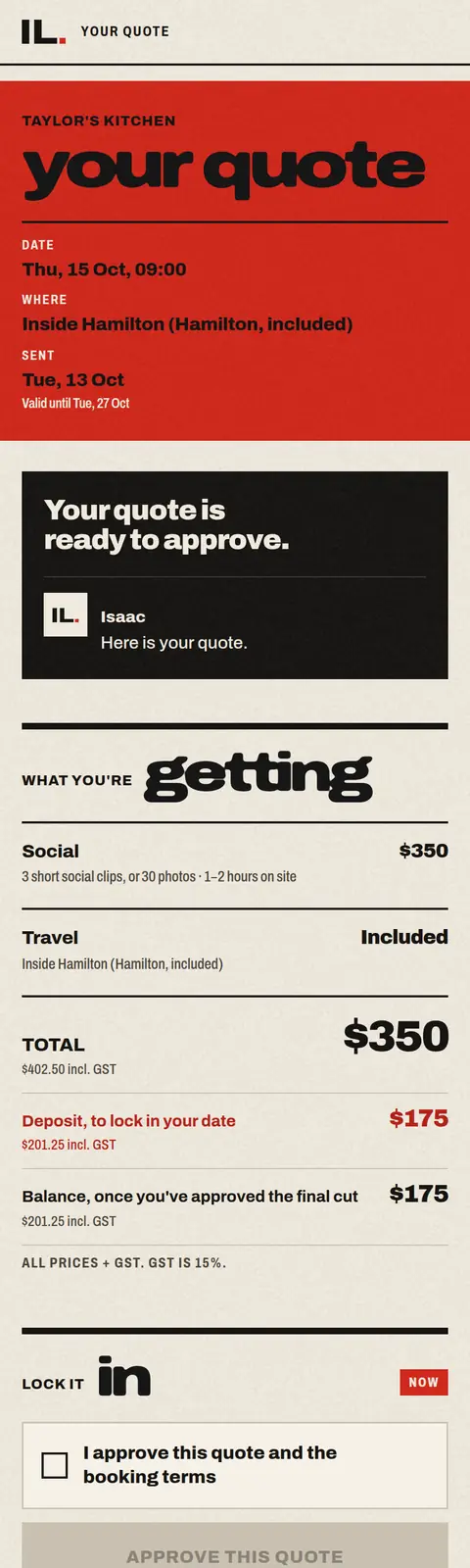
You get an email straight away to say it's in. I check every line, confirm the date, and send your quote within one business day. If I need to ask something, it's right there on the quote for you to answer.
3Step 3 of 7
Approve and pay the deposit
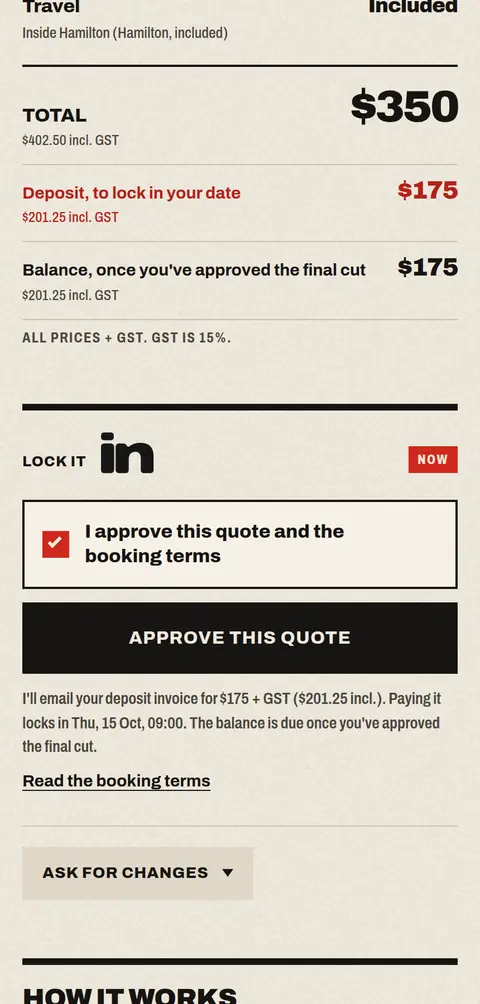
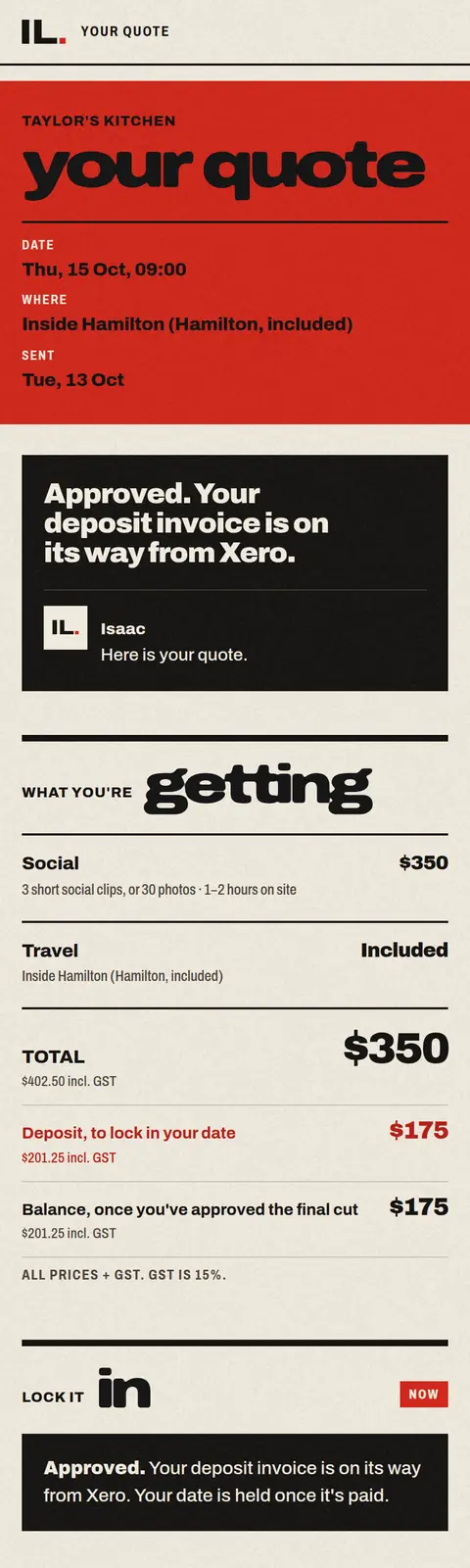
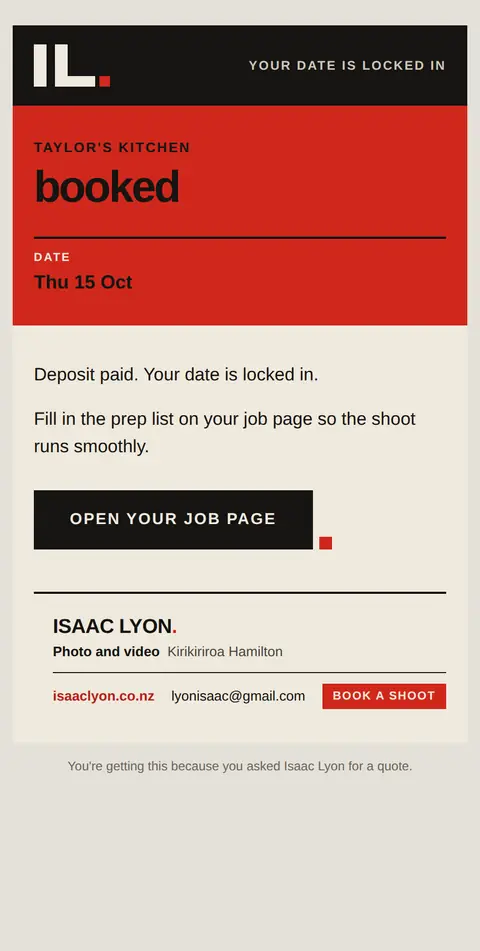
Tick the booking terms and approve the quote online. Your deposit invoice comes from Xero by email, and you can pay it by card, Apple Pay, Google Pay or bank transfer (the details are on the invoice). As soon as it's paid, your date is locked in and your job page opens.
Every price shows with and without GST. The balance is due once you've approved everything (for photo-only jobs, once your files are delivered).
4Step 4 of 7
Your own job page
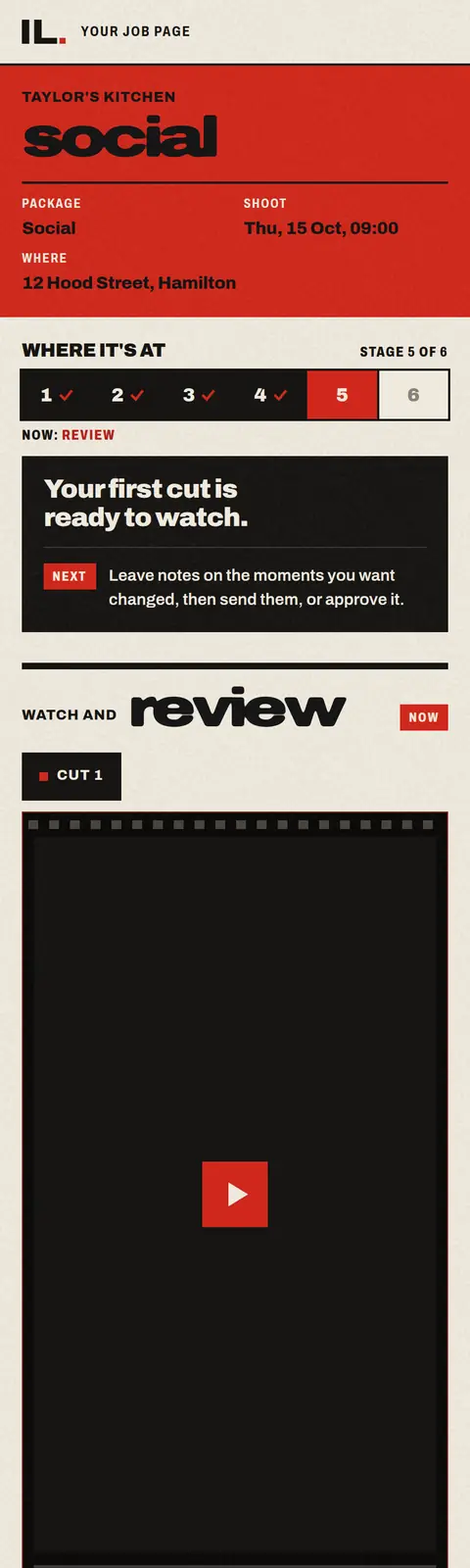
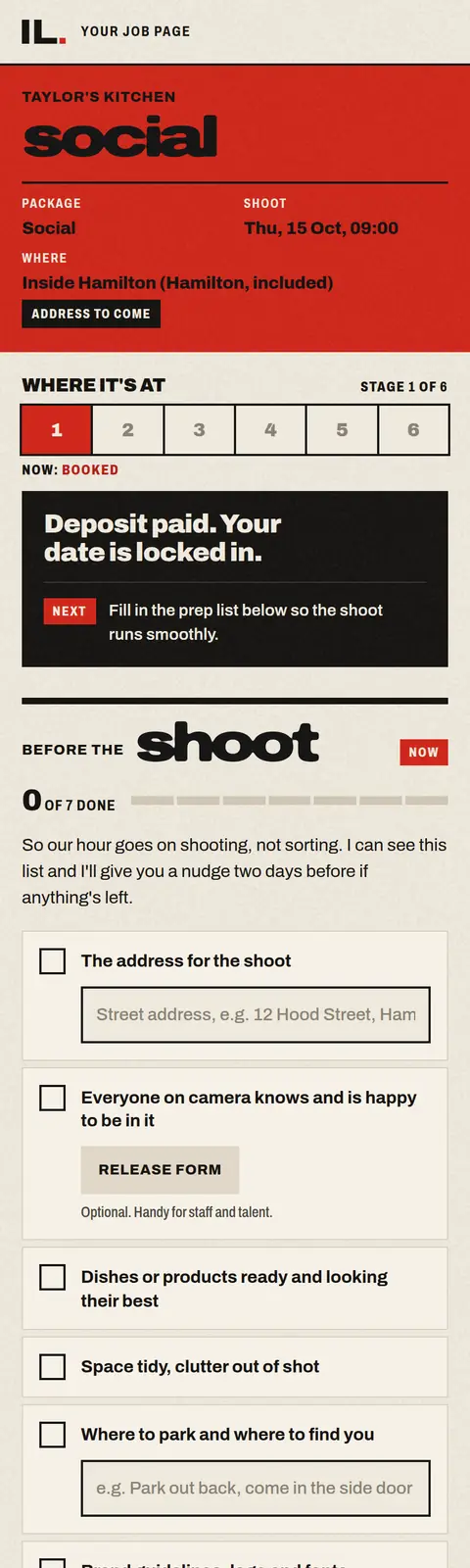
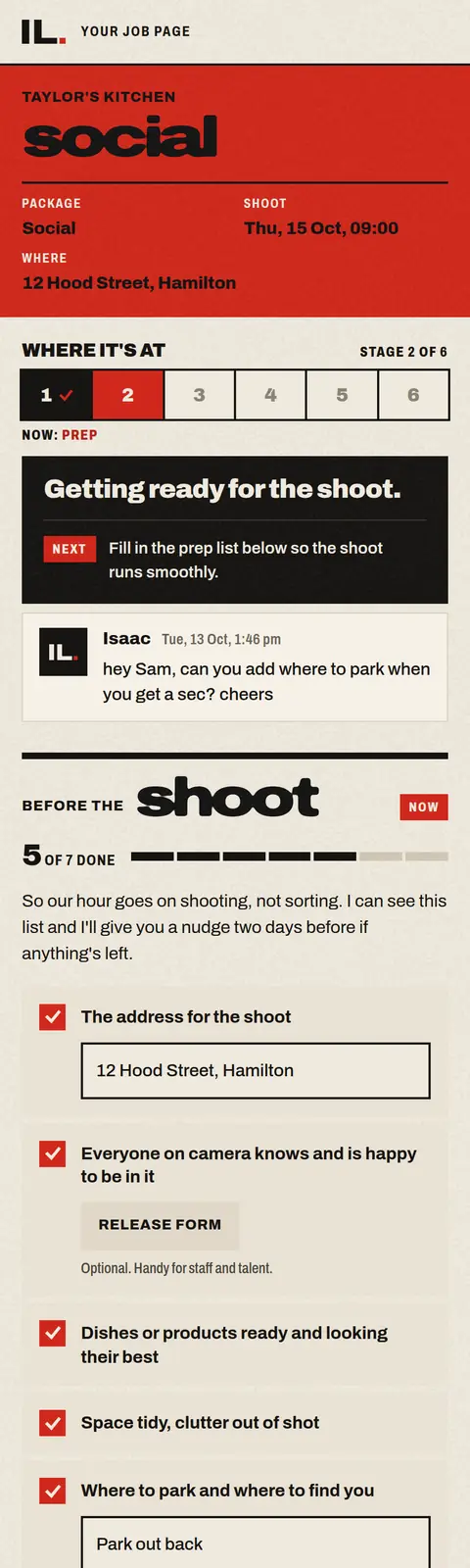
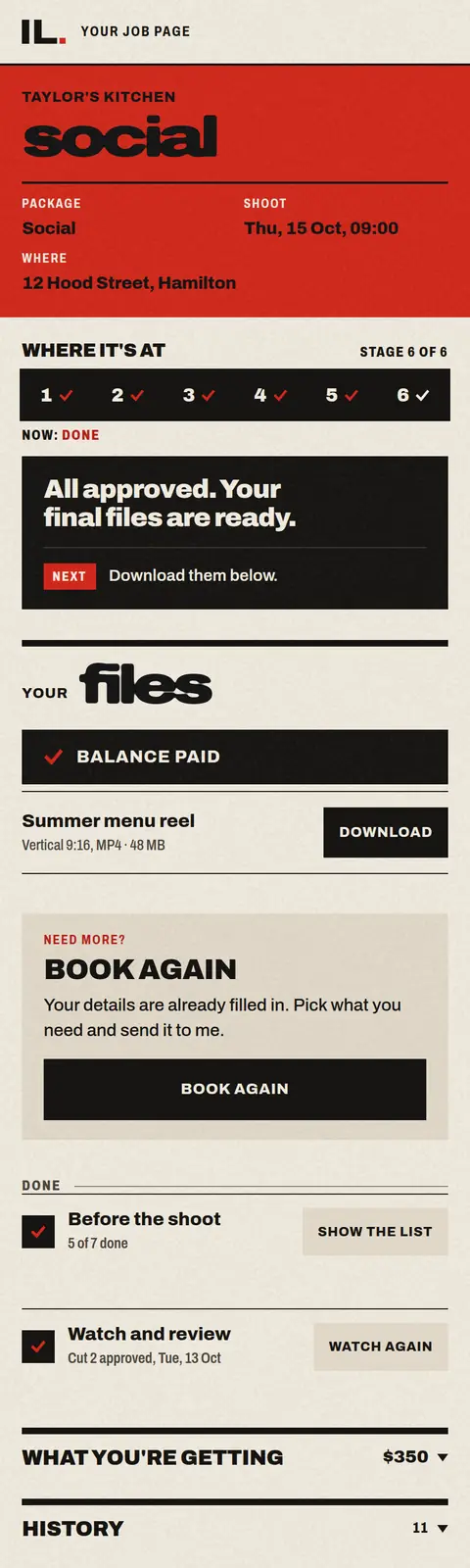
Your job page is where everything lives from here: one link, no account or password. It shows where the job is at (booked, prep, shoot day, editing, review, done) and always tells you the one thing to do next.
First up is a short prep list: the address, who's on camera (with a release form if you need one), products ready, where to park, your logo and the must-have shots. It saves as you go, and if anything's left I'll give you a nudge before the day.
5Step 5 of 7
Shoot day and the edit
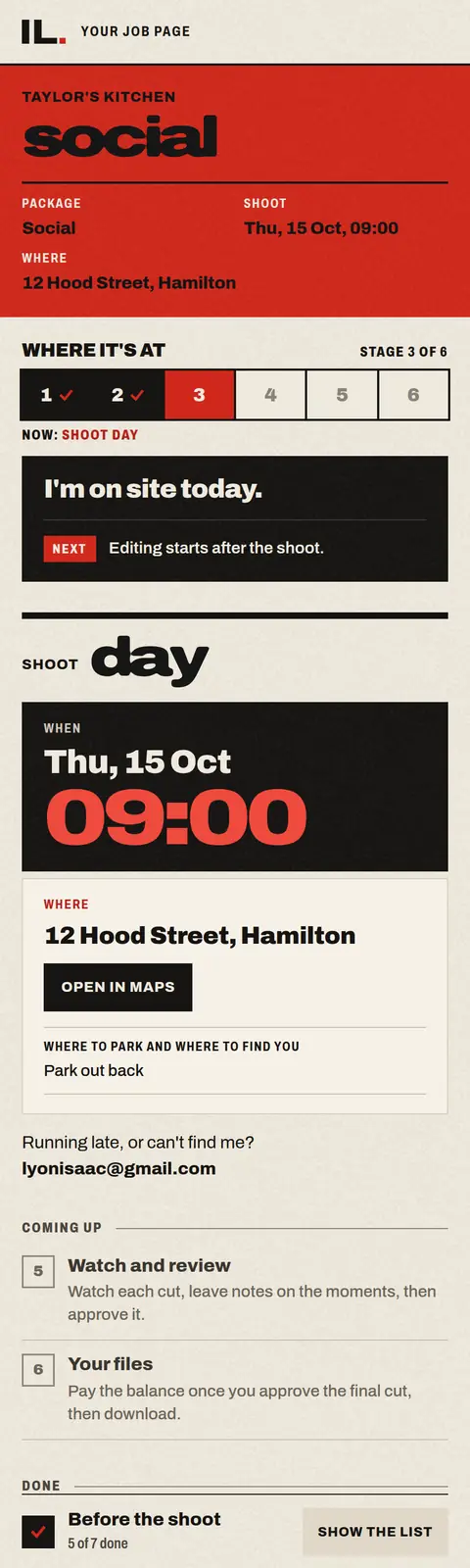
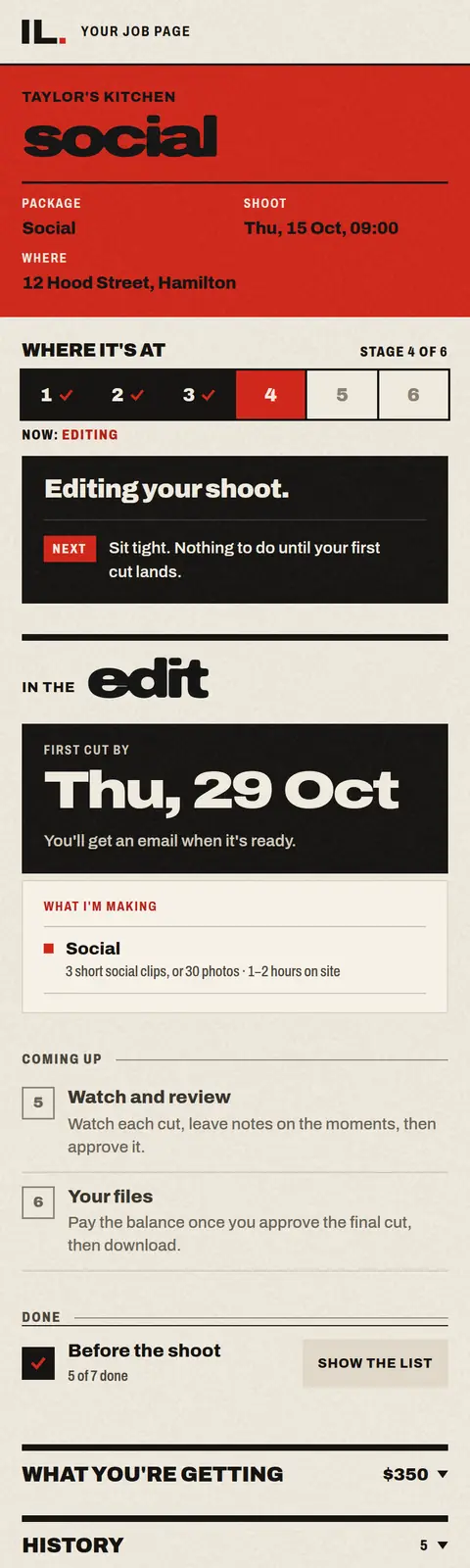
On the day the page shows the time and address. Once the shoot's done, the page shows when to expect your first cut, and there's nothing for you to do until it lands.
6Step 6 of 7
Watch, give notes, approve
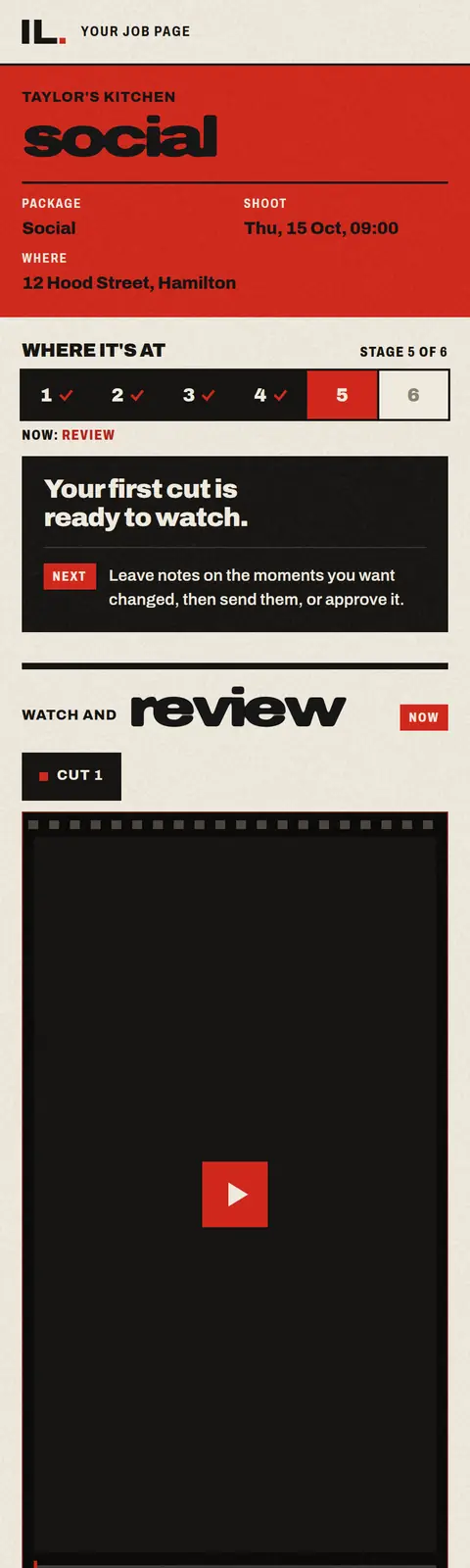
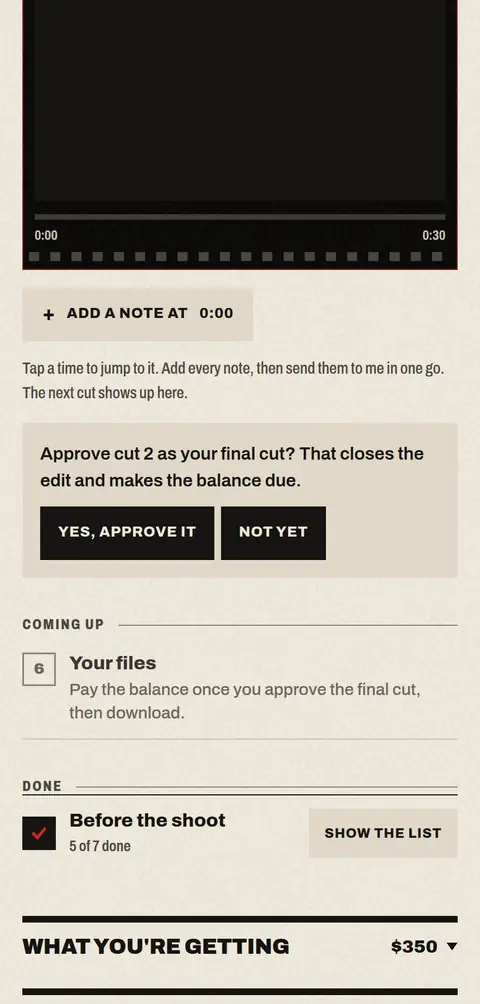
Each video in your quote shows up on your job page as it's ready, and you get an email. Videos play right on the page: pause on any moment and leave a note pinned to that second, then send them all to me in one go. When you're happy with one, approve it. Photos usually come straight with your final files.
7Step 7 of 7
Pay the balance, download your files
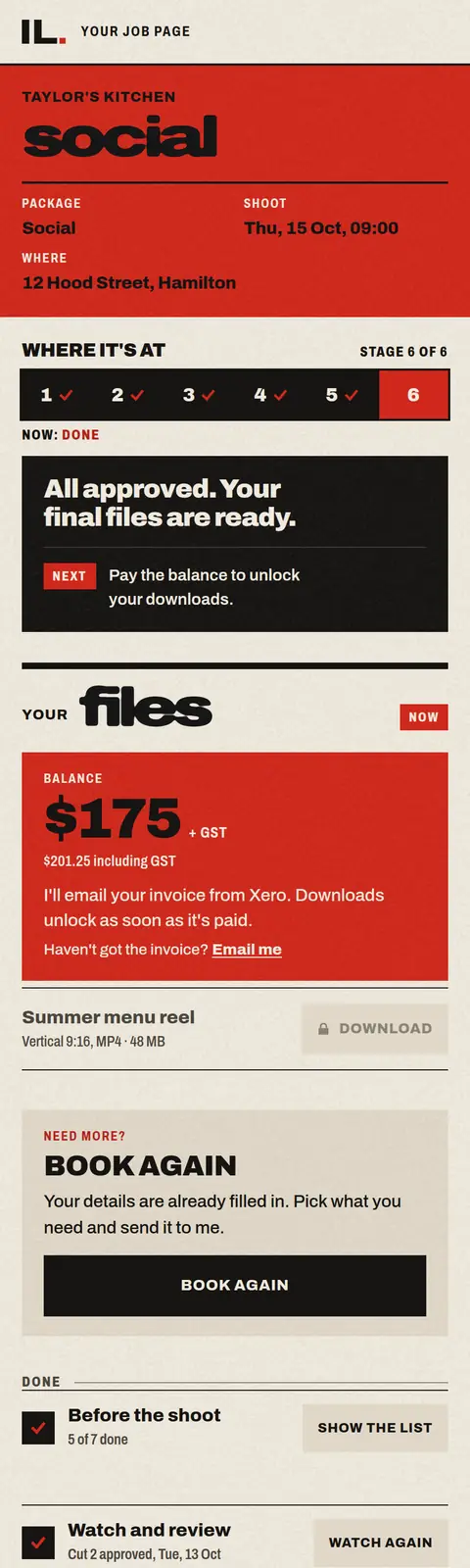
Approving the last one makes the balance due, and the invoice comes from Xero. Your files are listed on your job page straight away and unlock the moment it's paid. Downloads stay up for 60 days, and booking again takes one tap with your details already filled in.
More I can help with
- Video productionBrand films, events and athletes, with fixed-price packages.
- Social media contentReels, cutdowns and behind the scenes, back within 1 to 2 business days.
- Corporate and business videoTraining, health and safety, team profiles, testimonials and how it's made.
- Photos for businessTeam, workplace, product and event photos, natural and easy.
- Consults and workshopsA 90 minute sit-down and a written plan, or a class for your team.
Ready when you are.
Pick a package or build your own. I'll get back to you with a quote within one business day.